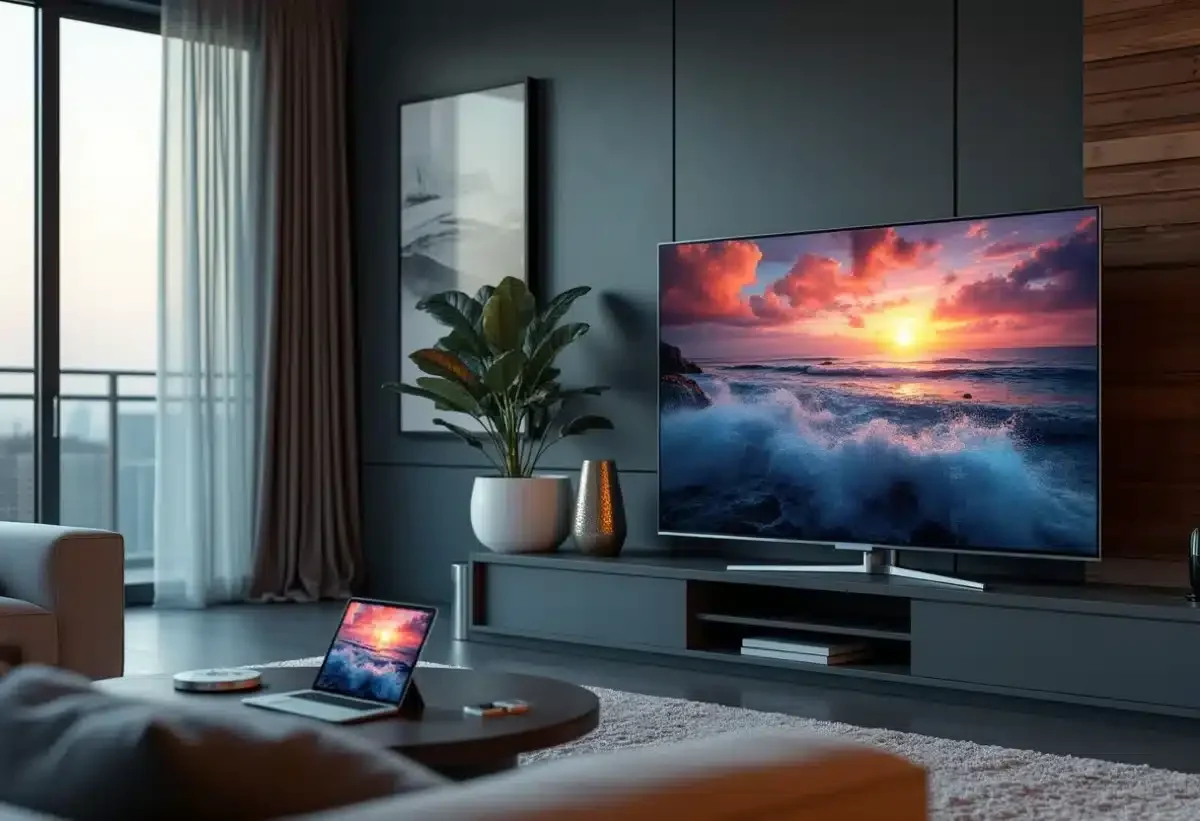
Watching your favorite movies and series on the big screen from a tablet is a dream! However, connecting these two devices can sometimes be more complicated than expected. Between incompatible cables and network settings, there are plenty of obstacles.
Often, the problems stem from the absence of an HDMI port on the tablet. A simple solution is to use an HDMI adapter or a wireless dongle like Chromecast. Sometimes, Wi-Fi connection issues can also pose difficulties. In this case, checking network settings and restarting the devices can often resolve the problem.
How to connect your tablet to your television
The variety of available technologies allows for several solutions to connect your tablet to your TV. Here are the main methods:
Using an HDMI cable
Connecting a tablet with an HDMI port directly to your TV remains the simplest solution. If your tablet does not have an HDMI port, a USB HDMI adapter may be necessary.
Wireless solutions
Chromecast: Use a Google Chromecast to stream content from your tablet to your TV. Install the Google Home app, set up the Chromecast, and then follow the instructions to share your screen.
Miracast: Many Android tablets support Miracast, allowing for a direct wireless connection with your TV if it is compatible.
AirPlay: iOS users can use AirPlay to stream their content to an Apple TV or compatible television.
Using cables and adapters
Even without an HDMI port, there are many solutions to connect your tablet to your TV:
- USB Cable: Use a USB cable to connect your tablet to your TV. Some tablets support MHL (Mobile High-Definition Link) mode via a specific adapter.
- Adapters: Specific adapters exist to convert the USB signal to HDMI, making the connection easier.
The compatibility of brands also plays a fundamental role. Make sure that your TV, whether it’s a Samsung, TCL, or another brand, supports the mentioned technologies.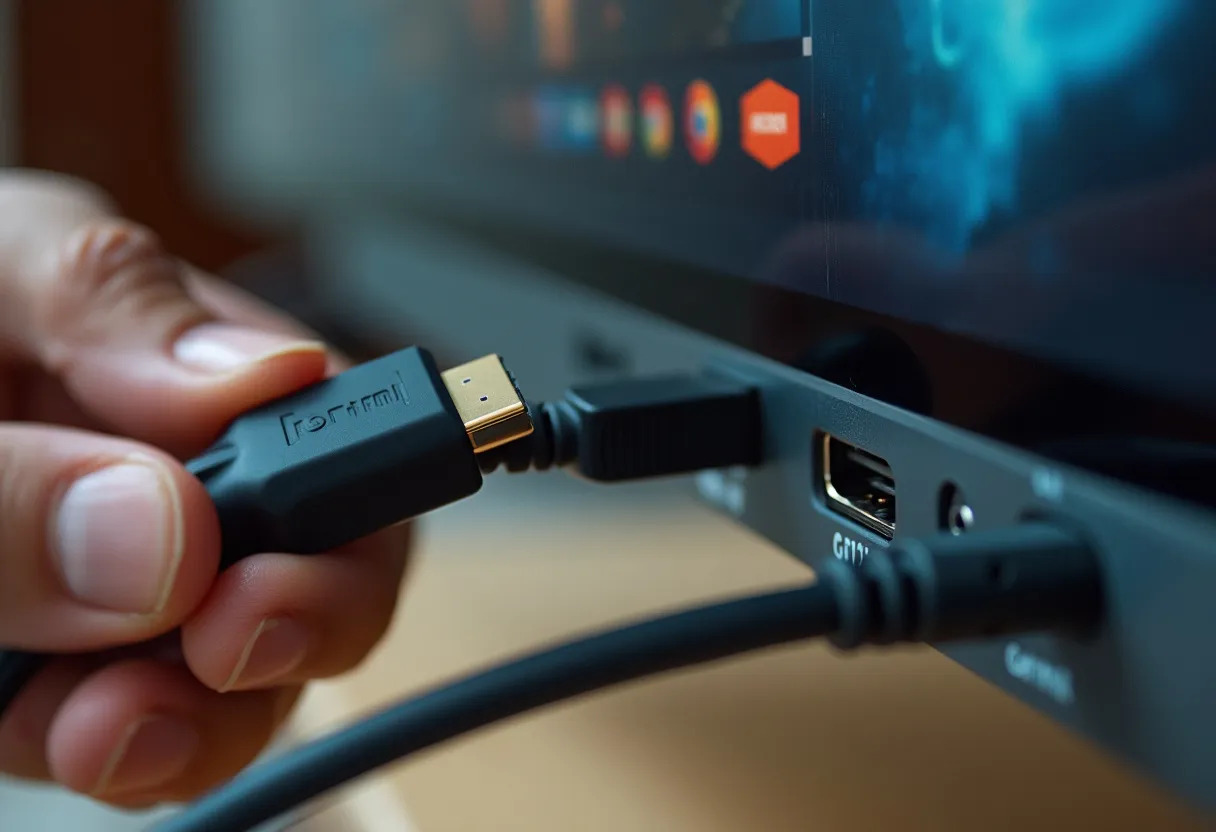
Common problems and solutions
When connecting your tablet to your TV, several problems may arise. Here are the most common ones and their solutions.
No signal
Problem: Your TV shows ‘No signal’ when you try to connect your tablet via an HDMI cable or adapter.
Solution:
- Check that the HDMI cable or adapter is properly connected to both the tablet and the TV.
- Ensure that the TV is set to the correct input source (HDMI 1, HDMI 2, etc.).
- Try another cable or adapter to rule out any hardware defect.
Wireless connection issues
Problem: The connection via Chromecast, Miracast, or AirPlay is not working.
Solution:
- Ensure that your tablet and TV are connected to the same Wi-Fi network.
- Restart your Wi-Fi router, tablet, and TV.
- For Chromecast, check that the Google Home app is up to date. For AirPlay, make sure your iOS device and the Apple TV or compatible TV are up to date.
Device compatibility
Problem: Your TV or tablet does not support certain technologies like Miracast or AirPlay.
Solution:
- Check the specifications of your TV and tablet to verify the supported technologies.
- Opt for universal solutions like a USB HDMI adapter if your TV or tablet lacks native compatibility.
- Consider upgrading your hardware if incompatibilities persist.
Image or sound quality issues
Problem: The quality of the image or sound is poor during the connection.
Solution:
- Check the resolution settings on your TV and tablet. Ensure they are compatible.
- Use high-quality cables and adapters to avoid signal loss.